
Information reviewed: October 12, 2026
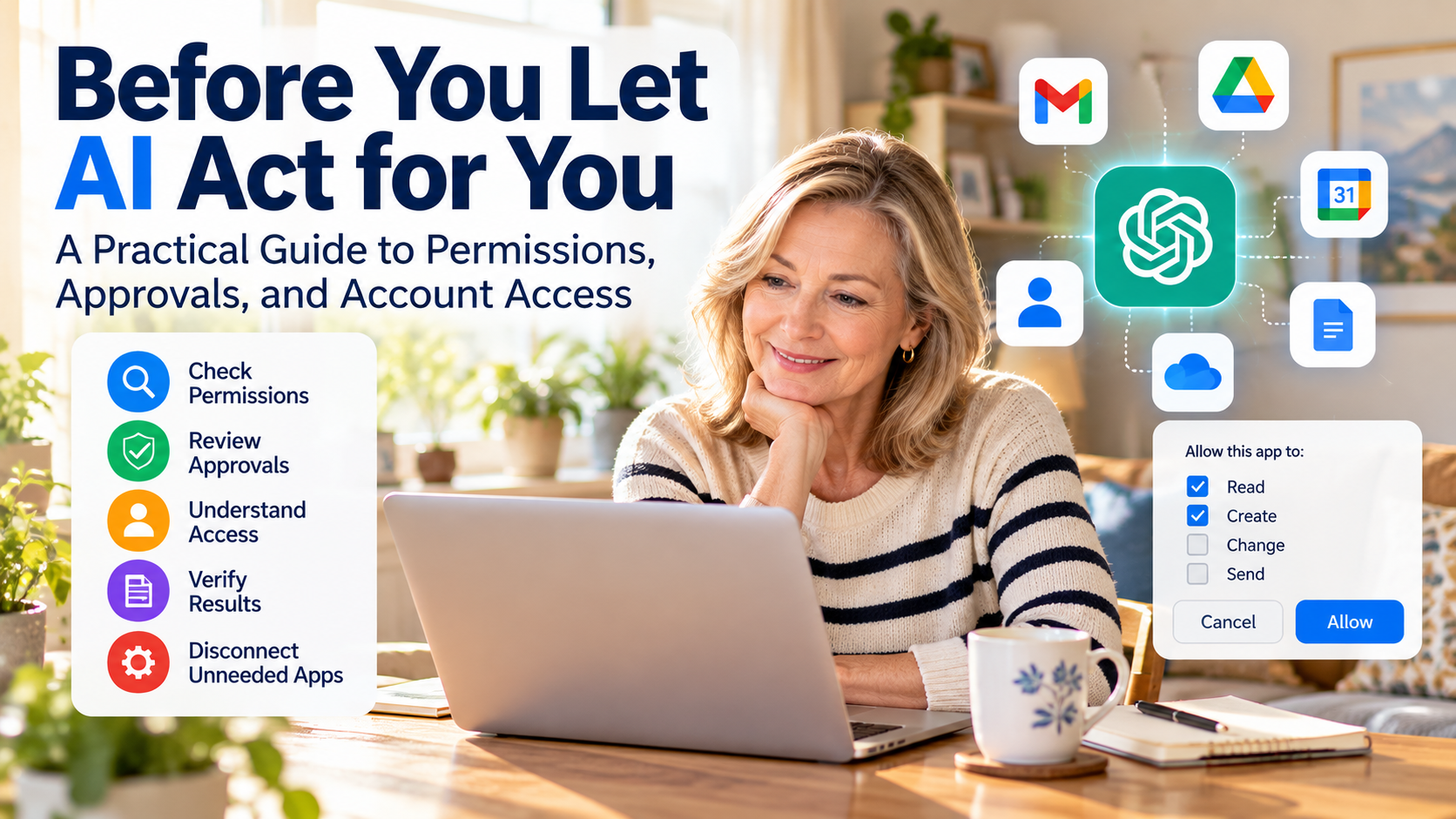
AI assistants are moving beyond answering questions. Depending on the product and connected services, they may be able to search information in your accounts, organize files, manage calendar events, or carry out other supported tasks.
That convenience creates an important question:
What should you allow AI to do for you, and what should remain under your control?
You do not need to be a technology expert to make informed decisions. You need to understand what an AI tool can access, what it can change, when it asks for approval, and how to check what actually happened.
This guide provides a practical way to make those decisions without giving AI unnecessary access to your information.
Quick Answer: Give AI Only the Access It Needs
Before connecting an AI assistant to another service:
- Decide what specific task you want completed.
- Identify which account and information the AI needs.
- Check whether it can read information, take actions, or both.
- Review when your approval is required.
- Begin with a low-risk task.
- Verify the result in the original service.
- Disconnect access when you no longer need it.
The goal is not to avoid AI. It is to use AI while keeping control of your accounts and decisions.
1. Understand What AI Is Asking Permission to Do
An AI connection may provide different capabilities.
| Capability | Example | What to check |
|---|---|---|
| Read | Summarize emails | Which messages can it access? |
| Create | Add a calendar event | Will the event be saved automatically? |
| Change | Update a document | Which file will be modified? |
| Send | Email another person | Who will receive the message? |
| Share | Grant access to a file | Who will be able to see it? |
| Delete | Remove a file or record | Can the change be reversed? |
These examples do not mean every AI assistant supports every action. Available capabilities depend on the product, connected app, account permissions, and sometimes the subscription plan or workplace settings.
A request to summarize one document does not necessarily justify access to an entire cloud-storage account.
Choose the least intrusive method that can accomplish the task.
For example, you might provide a non-sensitive copy of a document rather than connect your entire storage account.
2. Know the Difference Between Access and Approval
This distinction is easy to overlook.
Account access determines which information and supported actions are available through a connected service.
Approval settings determine when the AI service asks you before using that access.
Changing an approval setting does not necessarily revoke the underlying connection.
For example, an AI service may offer different approval options for actions supported by connected apps. Some actions may require confirmation, while others may be allowed without a separate prompt, depending on the product and settings.
The connected service may also have its own authorization controls.
If you want to stop an AI service from accessing a connected account, review the connection itself—not only its approval setting.
For current ChatGPT instructions, see:
3. Use the 30-Second Approval Check
Before allowing AI to take an action, ask five questions.
WHO? Which AI service, connected app, and account will perform the action?
WHAT? What exactly will be read, created, changed, sent, shared, or deleted?
WHERE? Which file, email address, calendar, folder, or outside service is involved?
IMPACT? Could this expose private information, cost money, affect another person, or create a change that is difficult to reverse?
CONTROL? Can you review the result, correct a mistake, and stop future access?
If an important answer is unclear, postpone the action until you understand what you are approving.
A familiar app name is not enough. Check the specific account and proposed action.
Real-Life Example: Should You Let AI Organize Your Email?
Situation: You want an AI assistant to help organize a crowded email inbox.
Before connecting your email account, consider these decisions:
- Allow: Ask AI to suggest email categories or summarize selected, non-sensitive messages.
- Check first: Determine whether the connection can access your entire mailbox or only selected information.
- Require your review: If the service supports sending, deleting, or moving emails, review the proposed actions and available approval controls before proceeding.
- Verify: Open your email service directly to confirm what changed.
- Disconnect: If you no longer need the connection, review how to revoke its access.
Practical decision: If you only need help writing a reply, copying a non-sensitive draft into an AI tool may be more appropriate than connecting your entire email account.
Remember: The exact permissions and approval options depend on the AI service and email provider.
4. Match Your Caution to the Task
Not all AI tasks have the same consequences.
Everyday, lower-risk tasks
Examples include brainstorming meal ideas, organizing a sample packing list, or rewriting text without private information.
These tasks often do not require connecting an outside account.
Tasks involving personal accounts
Examples include summarizing emails, reading cloud documents, or managing a personal calendar.
Review what information the AI can access and whether it can make changes.
Tasks affecting other people
Examples include sending a family message, changing a shared calendar, or sharing a workplace document.
Confirm recipients, sharing permissions, and the possible consequences for others.
Especially sensitive tasks
Financial transfers, purchases, confidential work records, medical information, and legally significant actions require additional caution.
Verify important details independently through the original institution or service. Follow any required authorization or professional review procedures.
An AI-generated confirmation is not proof that an important action was completed correctly.
5. Follow the AI Action Safety Check
Use four checkpoints whenever AI acts through a connected account.
Before: Set the boundary
Decide exactly what you want done, which account is involved, and what information is necessary.
Avoid granting broader access merely because it seems convenient.
During: Review the action
If an approval request appears, check the account, proposed action, recipient, and information involved.
Do not assume every AI service asks for confirmation every time. Approval behavior varies by product, app, account, and settings.
After: Verify the result
Open the original email, calendar, document, or other service yourself.
Check whether the intended change occurred, whether anything unexpected was shared, and whether the information is correct.
Where available, review activity history or previous versions.
When finished: Review access
If the connection was temporary, consider disconnecting it.
Then review separately whether information previously shared or stored needs attention.
Disconnecting a service and deleting previously stored information are different actions.
6. How to Review Connected Accounts in ChatGPT
OpenAI provides official instructions for managing connected apps and accounts in ChatGPT.
At the time of this review, the documented general process is:
- Open ChatGPT and go to Settings → Plugins.
- Select the relevant app or plugin.
- Review the connected account and available permission controls.
- Check whether the connection is still necessary.
- If you want to disconnect, open the relevant account or connection options and choose Disconnect, where available.
- Read any warning before confirming.
The interface and available controls may vary by account, app, device, and workspace.
If you cannot find an option, consult the provider’s current official instructions rather than assuming that a missing control has been removed.
Disconnecting an account generally stops future access through that connection. It does not necessarily erase conversations, saved files, or information previously shared.
For the current process, visit OpenAI’s account connection guide.
7. How Gemini Handles Connected Apps and Saved Information
Google Gemini also offers connections to supported apps and services, but its capabilities and controls are not identical to ChatGPT’s.
Depending on your account and available features, you may be able to manage connections through Gemini’s Connected Apps settings.
Google explains that disconnecting an app does not automatically remove information already saved in Gemini Apps Activity.
Deleting Gemini activity also does not necessarily remove information stored by another service.
If you want to stop a connection and review previously saved information, check both the connection settings and the applicable activity or data controls.
Official guidance:
Do not assume that instructions for one AI provider apply to every AI service. Always check the current settings and official guidance for the specific product you use.
On a computer, open Gemini, select Customize (or More → Customize), then select Connectors to review your connected apps.
Frequently Asked Questions
Does AI always ask before taking action?
No. Approval behavior depends on the AI provider, connected app, account settings, and applicable restrictions. Some actions require confirmation, while others may proceed without a separate prompt.
Is disconnecting an AI app the same as deleting my data?
No. Disconnecting an app generally stops future access through that connection. Information previously shared or stored may require separate review or deletion.
Should I connect my primary email account?
Only when there is a clear reason and you understand the requested access. Consider whether a less sensitive alternative could accomplish the same task.
Can AI help with family responsibilities?
Yes, where supported and appropriate. Be careful with another person’s private information, shared accounts, and actions that affect family members.
Can AI manage financial tasks?
Some services may offer relevant capabilities, but financial actions require particular caution. Verify the institution, recipient, amount, and outcome independently. Do not rely solely on an AI assistant’s description.
Is avoiding all connected apps the safest approach?
Not necessarily. Connections can provide genuine convenience. The practical approach is to understand permissions, grant only what is needed, and review access regularly.
Your Next Step
Choose one AI service you already use.
Open its connected-app settings, identify one connection, and answer three questions:
Why is it connected? What can it access or change? Do I still need it?
That short review is a practical way to begin taking control of AI tools.
The Bottom Line
AI can make everyday tasks easier, but convenience should not mean giving up control.
Understand the access you grant. Review consequential actions. Verify results in the original service. Remove connections you no longer need.
Let AI help with the work. Keep yourself in charge of the decisions.
Continue Learning
New to AI? Start with our How to Use ChatGPT After 50: A Simple Beginner’s Guide. Although written for older beginners, its basic guidance can help adults of different ages.
Official Sources
- OpenAI — Connected apps in ChatGPT
- OpenAI — Connecting and managing app accounts
- Google — Gemini Apps Privacy Hub
- Google — Use and manage Connected Apps in Gemini
Wise Years Living provides general educational information. AI capabilities, permission settings, and account controls may change and can vary by provider, device, account, and region. Check current official instructions before granting sensitive access.